Rental Resource Management
You can add and manage rental resources easily following the below steps.
Product Setup >> Resources
Viewing Resources for Each Product
- Choose a vendor
- Choose a product
- Click "View"
- The resources added for the product will be listed in the page
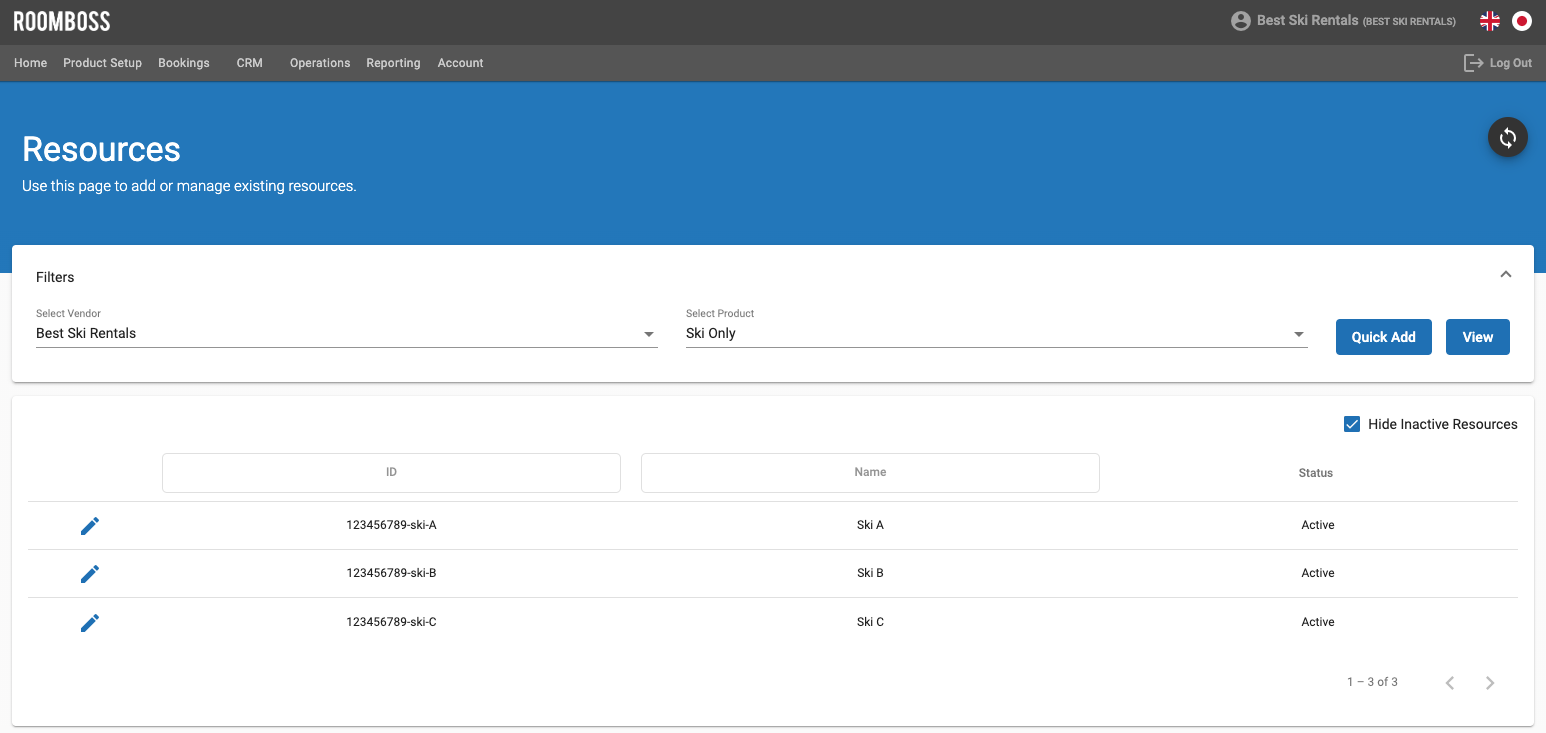
You can also choose to view or hide inactive resources by toggling the "Hide Inactive Resources" box on the right hand side.
Adding Resources from "Quick Add"
-
Choose a vendor
-
Choose a product
-
Click "Quick Add"
-
(Optional) Add a Name for this resource
-
Make sure the ID* column is focused before scanning / manually typing
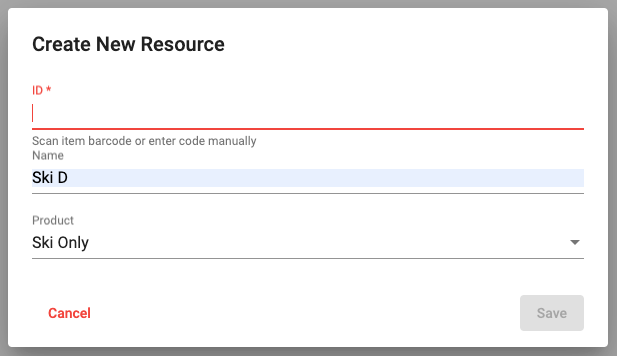
-
After you scan the barcode / enter the barcode manually, it is automatically saved to the resource.
Adding Resources from "+ icon" on the bottom page
- Choose a vendor
- Choose a product
- Click "View"
- Click a + icon

- Follow the same step from Setup 4 in 'Adding Resources from "Quick Add"' section
Editing Resources for Each Product
- Choose a vendor
- Choose a product
- Click "View"
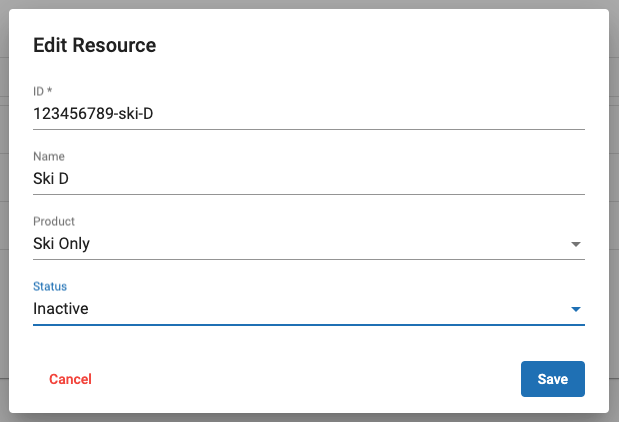
- Click Edit icon
 for the resources you want to edit
 - After you finish editing the resource, click "Save"
Making Resources Inactive
Please note that we cannot delete the resources, we can only make them inactive.
-
Choose a vendor
-
Choose a product
-
Click "View"
-
Click Edit icon
for the resources you want to make inactive -
Change the status to "Inactive"
-
Click "Save"
Stocktake Report
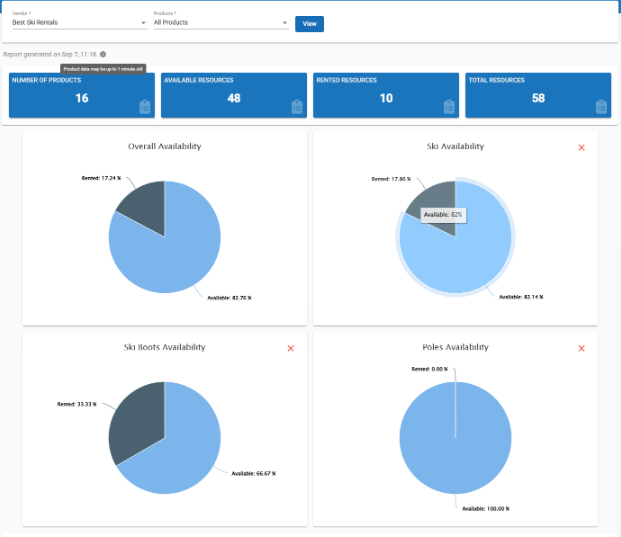
The Stocktake Report provides item-level visibility into your rental inventory, tracking real-time operational status, total stock quantities, and rental availability across individual resources.
Reporting >> Stocktake Report
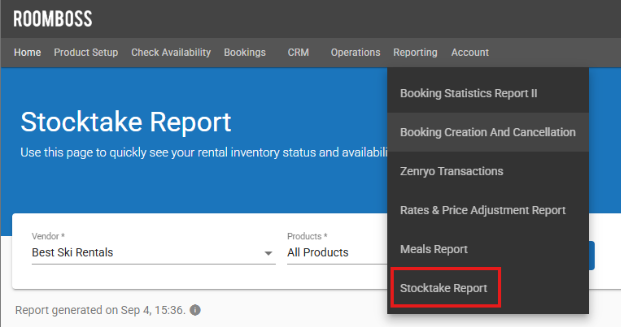
Filter by Vendor and Product to view all or specific items, then click View to generate the report.
The generated report displays the following details:
- Summary Overview: Displays total counts of available versus rented resources across your selection.
- Product Breakdown: Displays total available stock quantities summarized by product type.
- Resource Breakdown: Displays an itemized list at the bottom of the page showing the operational status and rental availability for each individual resource.
Use the status and rental availability filters within the Resource Breakdown section to quickly identify specific physical items.