Enabling Automated Emails
Automated email sending is enabled from the Edit Account Details page. The email template content is managed separately from the Rich Messages page.
To enable automated emails:
- Navigate to Account → Edit Account Details.
- Click Edit
- In the Automated Emails section, select the checkbox for each email trigger you want to send.
- Set the offset days where required.
- Click Save.
After enabling an automated email trigger, create or review the matching template on the Rich Messages page.
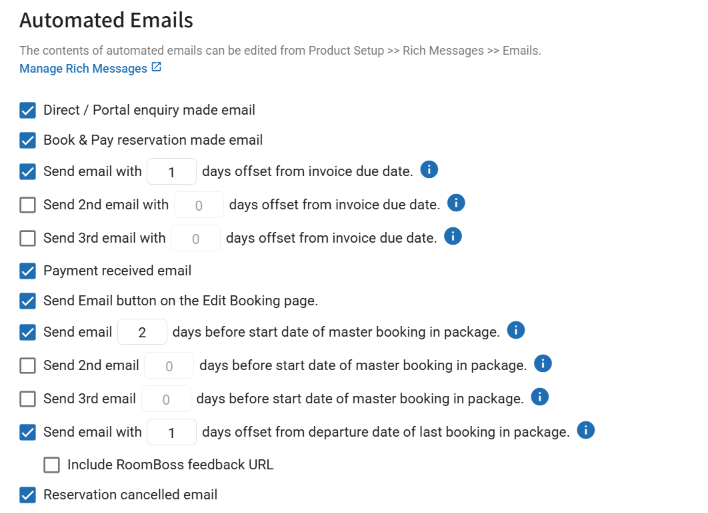
Where appropriate, automated emails can be sent with a day offset. For example, an email can be sent 3 days before or 3 days after the trigger event.
info
For scheduled emails, set the day offset to control how many days before or after the event the email is sent.
Setting the offset to 0 sends the email on the day of the event.
warning
Automated emails are only sent to guests with a valid email address on their booking.