The Basics
Setup
Trust setup is completed in conjunction with RoomBoss. We will setup the chart of accounts, model the contracts you have with your owners within the system, and setup housekeeping charges (if required).
Completing Accounting for a Trust Period (Calendar Month)
A Trust Period is a monthly accounting period. Once opened, account entries are recorded within the period until it is closed. Once closed, a period cannot be reopened.
Steps required to generate account entries for a period:
- Transferring Payments: Records incoming guest or agent payments dated within the period onto trust ledgers (e.g., debiting Accounts Receivable).
- Finalising Packages: Required step before transferring accommodation. While this step doesn’t directly generate postings, it locks package details to ensure reporting consistency.
- Transferring Accommodation: Applies contract rules to checked-out bookings to calculate and post accommodation credits, commission debits, and associated fees.
- Adding Journal Entries: Manually posts custom ledger entries for items such as vendor bills, owner deposits, or withdrawals.
Steps for completing accounting for a period
1. Open Trust Period For The Month
Navigate to Trust → Setup → Periods
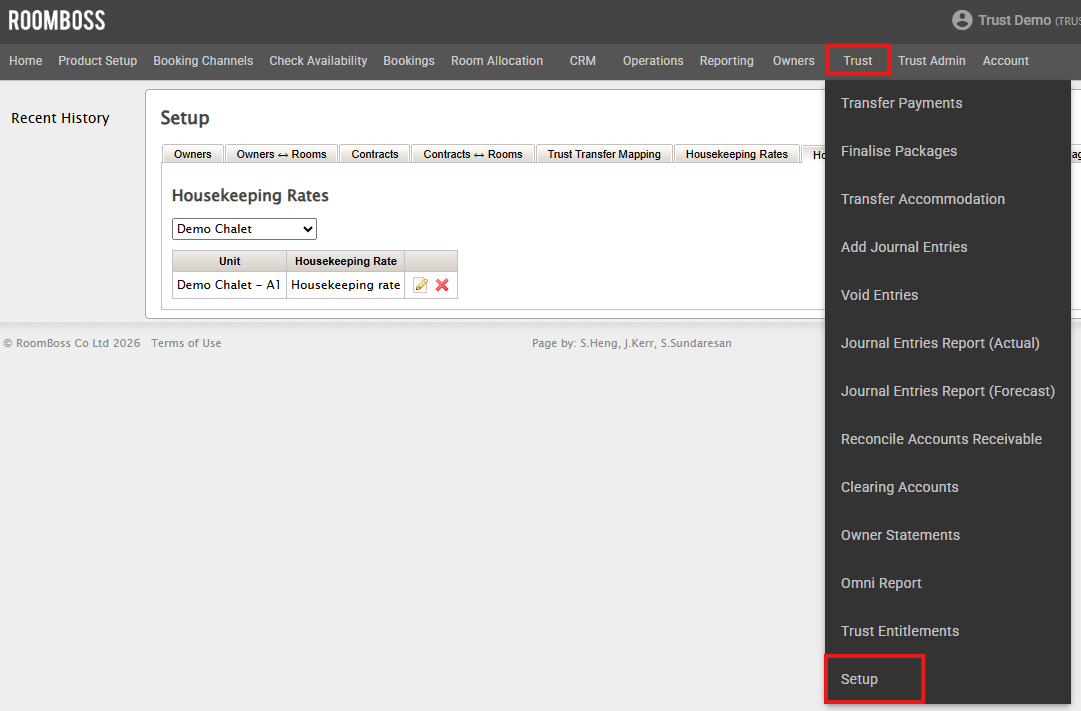

If a required period is not listed:
- Scroll to the Add New Period section at the bottom of the page.
- Select the target Year and Month.
- Click Add.
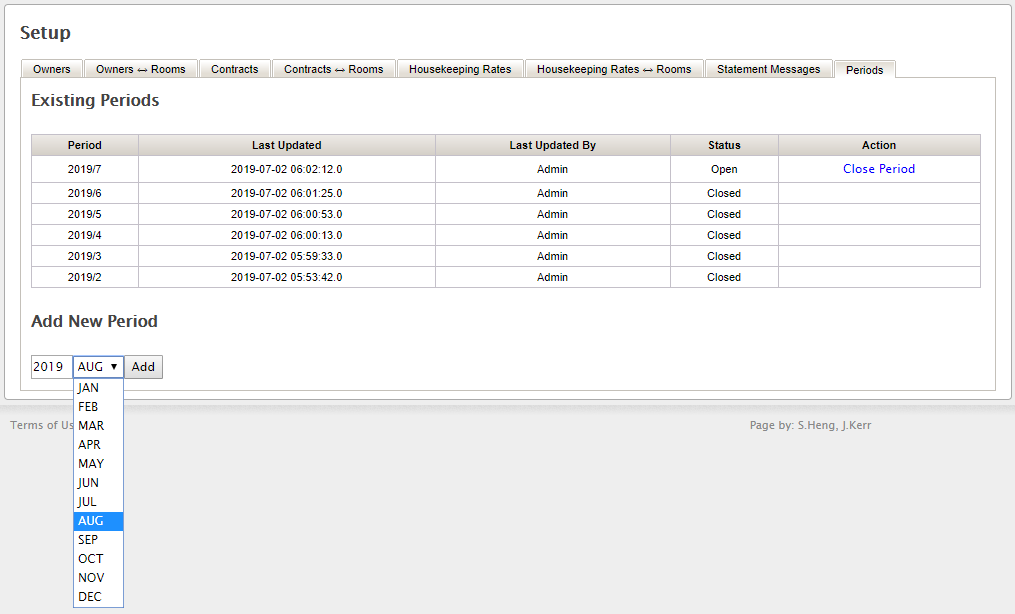
Permissions: Adding or opening trust periods requires Trust R5 – Advanced Accounting permission.
2. Transfer Payments
This is done via the Transfer Payments page.

Package payment methods can result in a mix of finalized and unfinalized transactions. Regardless of status, all payments for the period must be transferred into Trust to ensure all money received for bookings moves into the system.
Transferring Payments to Trust ensures that you have received the money that will be credited to the owners when you transfer accommodation to Trust. For this reason, it is not possible to transfer accommodation into Trust unless all the payments on the package have been transferred to Trust.
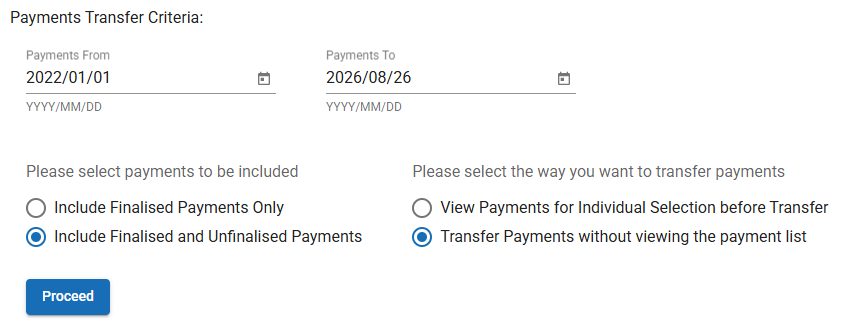
While payments can be individually transferred this is usually done in bulk. The following are the steps for bulk payment transfers:
- Define the set of payments to transfer by setting the Payments From and Payments To date fields.
- Select Include Finalised and Unfinalised Payments.
- Select Transfer Payments without viewing the payment list.
- Click Proceed.
Payment Transfer Failures
If a payment fails to transfer to Trust, a failure description is displayed in the Reason for Failure column on the right side of the page.

In most cases, the failure message indicates a specific issue with the payment that must be reviewed and corrected in reservations before proceeding. If the failure message is unclear or you cannot resolve the discrepancy after reviewing the reservation, contact RoomBoss Support for assistance.
Permissions: Transferring payments requires Trust R3 – General Accounting permission.
3. Finalise Packages
Finalising packages is done via Trust → Finalise Packages page.
To finalise packages, select the period of interest and choose whether to finalise all eligible packages immediately or review and select them before proceeding.
All packages must be finalised before they are posted into Trust. Finalizing a package locks it and ensures that the bookings and the Trust accounting cannot deviate after the accounting has been done.
In order to finalise a package:
- Guests must have checked out
- Bookings must be fully paid
- All payments on the package must be posted to Trust
- Accommodation bookings in the package must be allocated to a room
Should any of these requirements remain unmet during finalization, the system will display the package along with details identifying the specific issue preventing completion.
4. Housekeeping
If you are generating housekeeping charges for owners based on the RoomBoss housekeeping module, housekeeping tasks must be generated prior to posting bookings to Trust. See more on the RoomBoss Housekeeping module here.
5. Transfer Bookings
This is done via the Transfer Accommodation page.
When transferring bookings to Trust, you can either bulk transfer elements using the transfer mappings defined during set up or you can transfer elements listed one at a time.
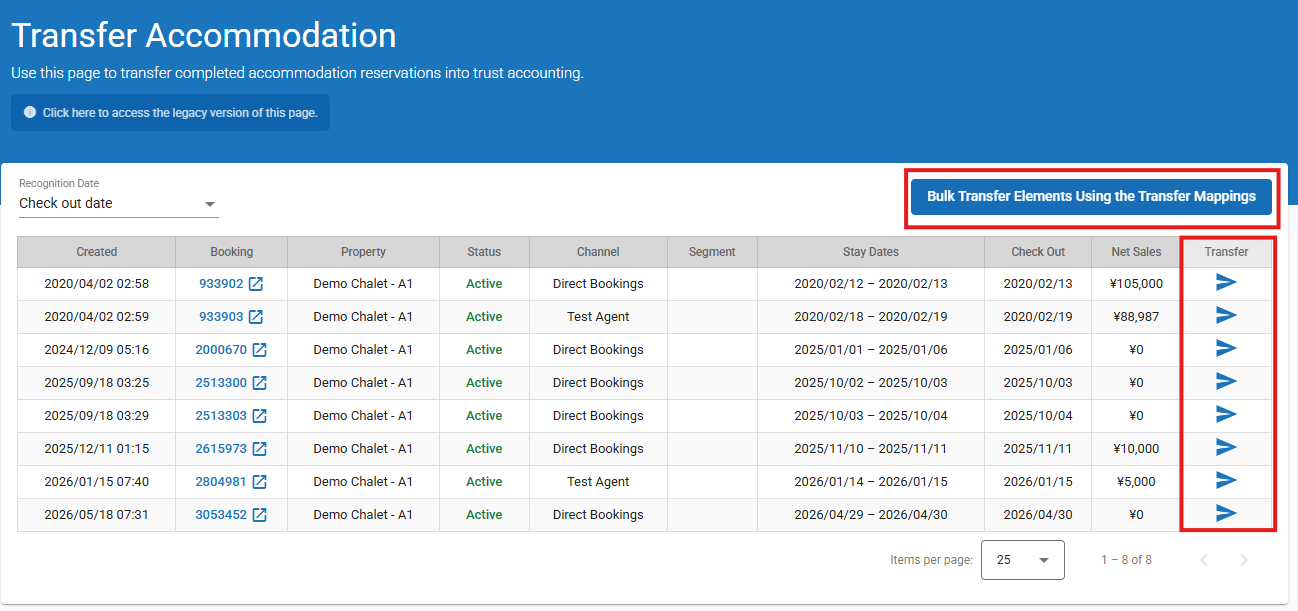
When transferring single elements you should choose the correct action, and, if more than one contract exists for the ownership, you can choose the contract to use. Accommodation bookings can be transferred to Trust with recognition date Today (day of transfer), Day of Check-out, or the Last Day of the Check-out Month.
The recognition date is the day that the account entries will be dated (the day the accommodation revenue becomes the owner’s).
If it is unclear which is the correct action to choose, please contact roomboss support.
6. Once Steps 2-5 Are Completed
There should be nothing present for this period on the Transfer Payments page.
Only bookings you wish to carry over to a future month should be present on the Transfer Payments page.
If items are present on this page that you wish to process in the current month, repeat step 2 and/or 5.
The only items present for this period on the Finalise Packages page should be any bookings that check out during this period, but will not be processed until a future period.
7. Add Account Entries for the Period
Entries such as owner withdrawals/deposits and electricity, gas, etc. bills.
You make entries directly to the accounting ledgers manually, or in bulk with an Excel upload via the Add Journal Entries page.
You can see more on the Excel upload here.
As this is a dual entry system, all entries have to be from 1 (or more) account/ledger to another and balance must be zero.
8. Void Entries
Journal entries, bills, and payments can be Voided if Trust period is still open via the Void Entries page.
9. Close Period
To do this, navigate to Trust → Setup → Periods.
Once a period is closed, owner reports links for owners with single properties will show on the Owner Statements page.
For owners with multiple properties, there is a link to a report for all properties under the Owners tab on the Trust → Setup page.
Owner reports can be customised with your branding. If you are interested, please contact us.
The owner can download the Owner Statement as either an Excel file or a PDF from the bottom of the page.