Guest Intranet
The Guest Intranet is a guest-facing page where customers can view information about their booking, review important instructions, and make payments.
Guests can access the Guest Intranet after making a direct booking. You can also share the Guest Intranet link with guests when required.
Booking Information
The Guest Intranet provides guests with a summary of their booking, including booking dates, booked products or services, guest information, terms and conditions, and payment details.
You can also share important information with guests through the Guest Intranet Message section on the Rich Messages page.
This can include meeting locations, arrival instructions, equipment requirements, lift pass requirements, and other booking prerequisites.
Viewing Invoices and Making Payments
Guests can view invoices associated with their booking from the Guest Intranet.
When online payment is available, guests can also make a payment directly from the page.
Once full payment has been made:
- The invoice will be updated to a receipt
- The guest can download the receipt as a PDF
- The updated payment status will be displayed in the Guest Intranet
The system will prevent a payment from being made if the booking has been cancelled or the associated invoice has already been paid.
Allowing Guests to Cancel Bookings
You can allow guests to cancel their bookings directly from the Guest Intranet and control the number of days before the booking start date that cancellation is permitted.
This is especially useful when plans change unexpectedly or outside business hours. It gives guests greater flexibility while reducing the number of cancellation requests that your staff need to handle.
To configure this setting:
- Navigate to the Online Payment Settings page.
- Locate the relevant vendor.
- Select the number of days before the booking start date that guests are allowed to cancel from the Allow direct guests to cancel their bookings dropdown.
- Click Save.
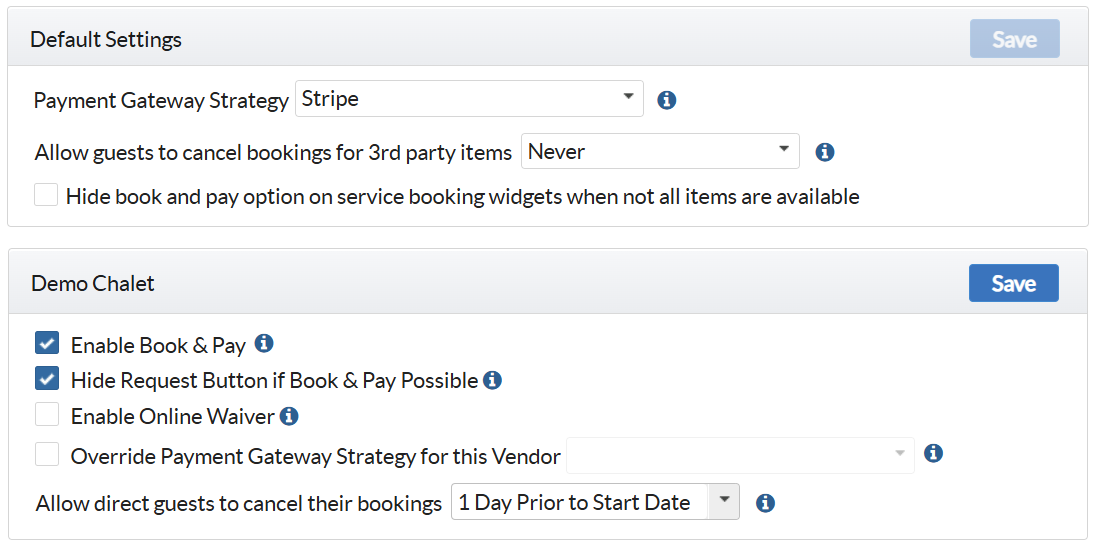
You can select a maximum of 7 days before the booking start date.
Guests will not be able to cancel their booking from the Guest Intranet if Never is selected.
To allow guests to cancel bookings for third-party items, enable the Allow guests to cancel bookings for 3rd party items setting under Default Settings.
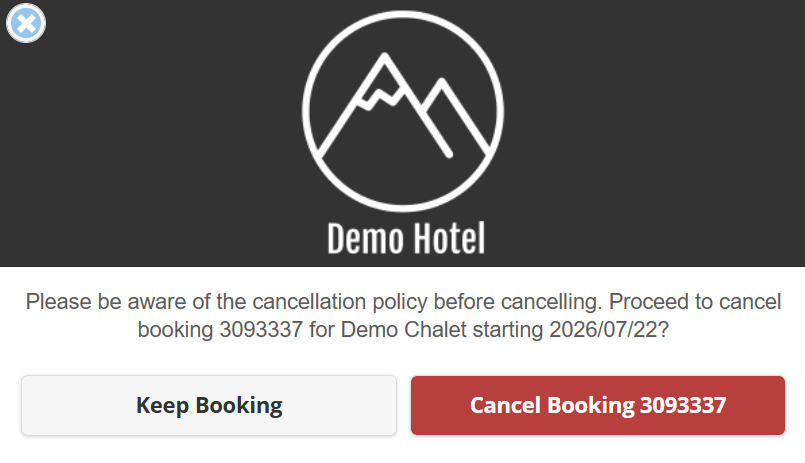
When the lead guest clicks the Cancel button, they must enter a One-Time Password (OTP) to confirm the cancellation. The OTP is sent to the email address associated with the lead guest.

After entering the OTP, the lead guest can complete the cancellation directly from the Guest Intranet.