Getting Around RB POS
RB POS brings sales and booking lookup together in one client. After signing in and selecting a Sales Desk, use the navigation bar at the bottom of the main screen to move between POS, History, and Search.
Choose the tab that matches your task:
- POS — start a new sale.
- History — return to a recently created.
- Search — find an existing booking using its ID or guest details.
The client opens on POS by default. Accounts with POS-only access show POS and History and Search are not available for those accounts.
POS
The POS tab is where you can create a new booking and take payment for products sold at your Sales Desk.
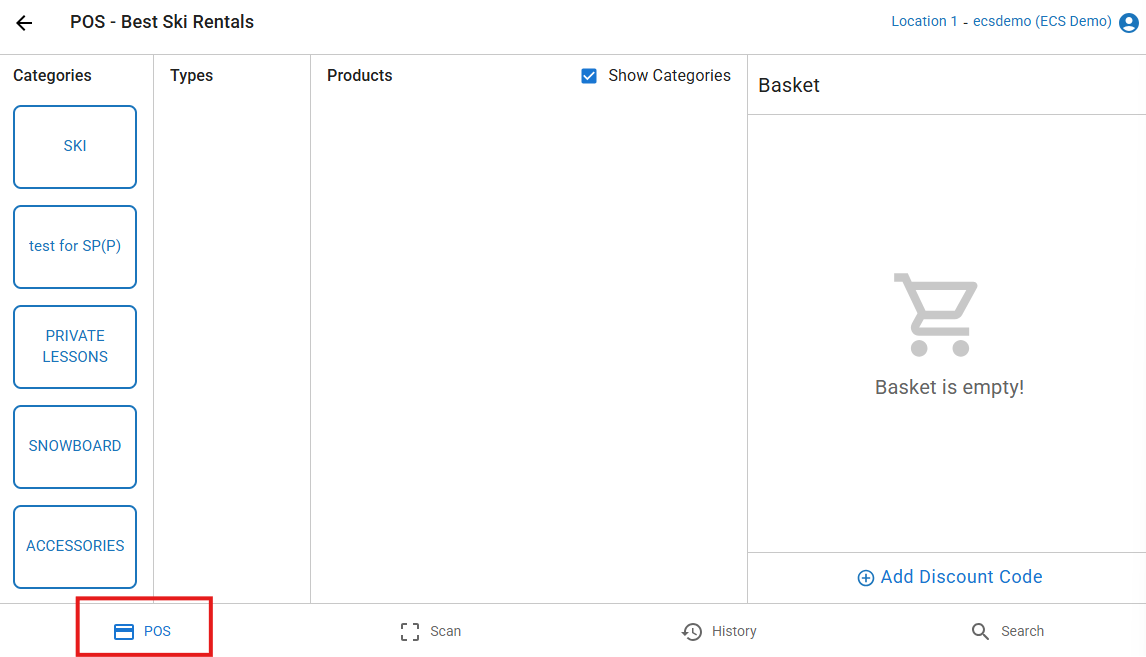
Once POS is selected, choose the vendor whose products you want to sell, add to the basket, and continue to checkout. After completing the booking, use the available receipt or ticket printing options before returning to products for the next sale.
Start here when a customer wants to make a new purchase, rather than look up an existing booking.
For product selection, payment methods, and printing instructions, see Making POS Bookings.
History
The History tab is used to show bookings recently created.
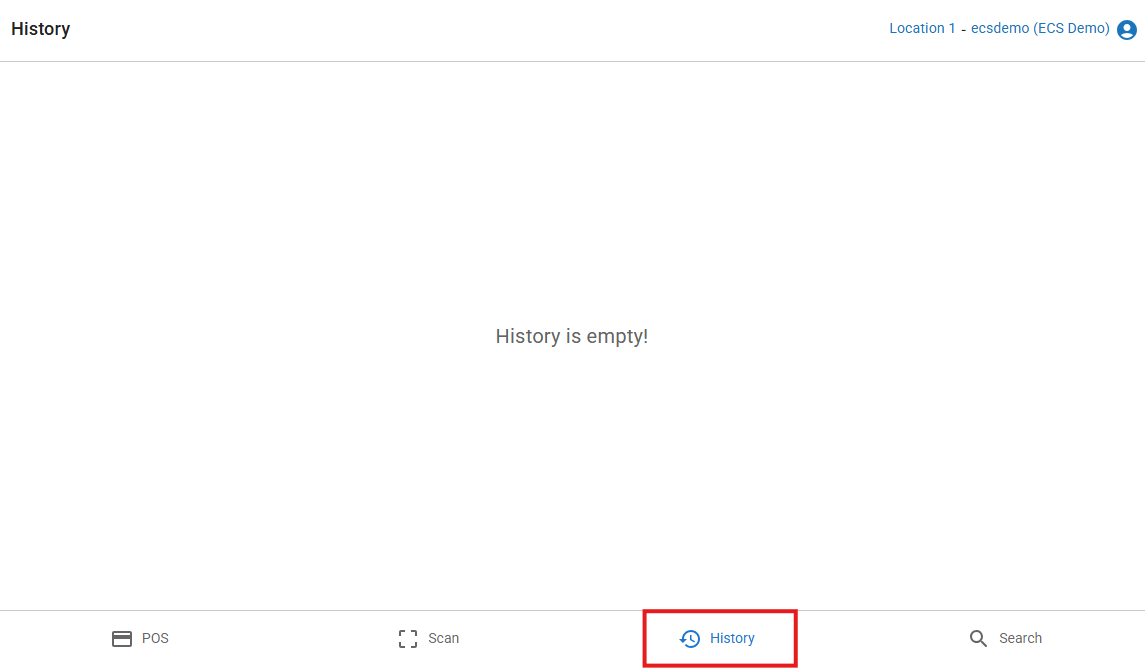
Once in the History tab, you can find the relevant entry using its Booking ID and guest details, then select it to reopen the booking.
History is useful when you need to revisit a booking you have just handled without searching again. Treat it as a recent-activity shortcut, not a complete transaction report or booking archive. Use Search, where available, if the booking is not listed.
Once the booking is open, follow POS Booking Management for the detailed management workflow.
Search
Use the Search tab to find an existing booking when a code is unavailable or the booking is not in History.
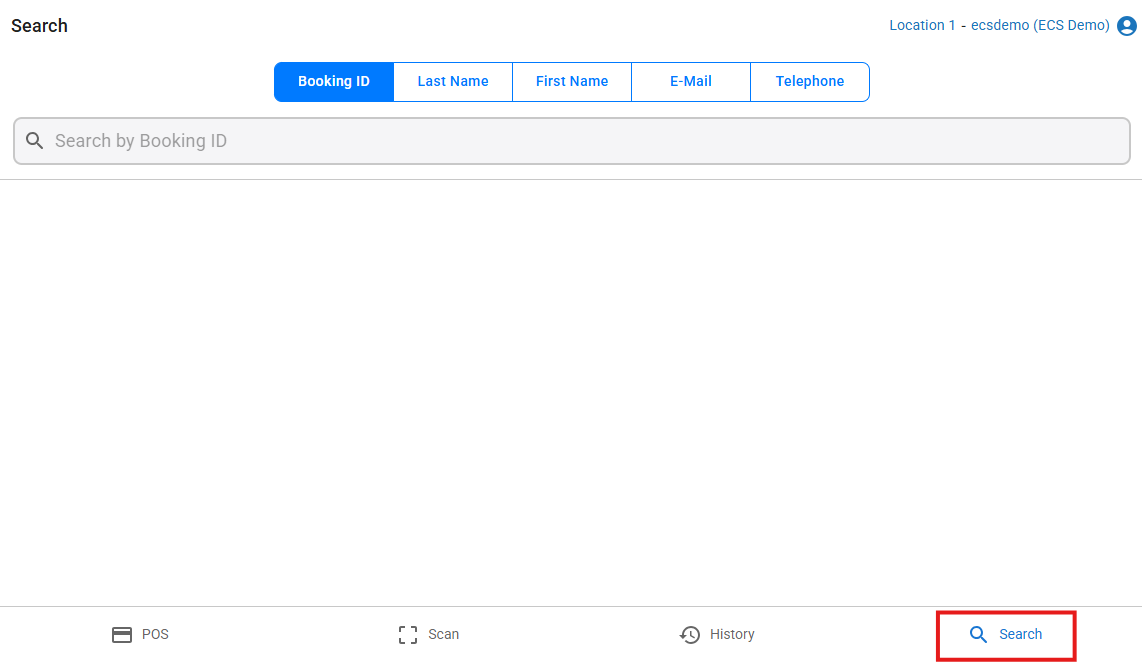
Once in the Search tab, choose Booking ID or a guest-detail search option, enter the value, and press Enter. A Booking ID opens the booking directly. A guest-detail search lets you select a matching guest, then choose one of their bookings.
Search is the starting point for helping a returning customer when you have their booking reference, name, email address, or telephone number.
For detailed search, cancellation, and refund instructions, see POS Booking Management. bookings.