Setup
Prior to using housekeeping it is necessary to setup events and schedules, then associate schedules with room types.
Navigate to Product Setup → Housekeeping and choose the Manage Housekeeping Schedules tab.
Cleaning Schedules
It is possible to create an unlimited number of cleaning schedules and populate these with cleaning events. For example, you could create the following schedules:
- Standard Cleaning schedule.
- Light Clean – cleaning once a week only.
- Daily Clean – cleaning everyday.
- Hot Tub Clean – a schedule only for apartments with hot tubs that includes hot tub clean events.
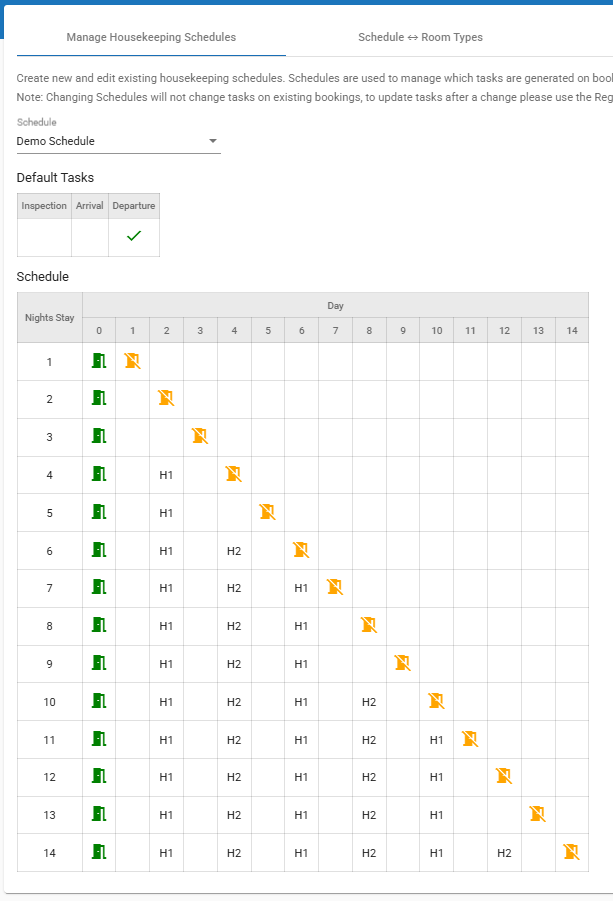
There are three pre-set default cleaning events: I – Inspection A – Arrival D – Departure
To create a cleaning schedule:
- Navigate to Product Setup → Housekeeping
- Click the
 icon on the right side of the screen and enter a Schedule Name in the Create New Schedule window.
 - Select the Max Nights Stay - the maximum length of booking it will apply to
- Choose which of the default tasks (I, A, D) you wish to include in the schedule
- Click Save
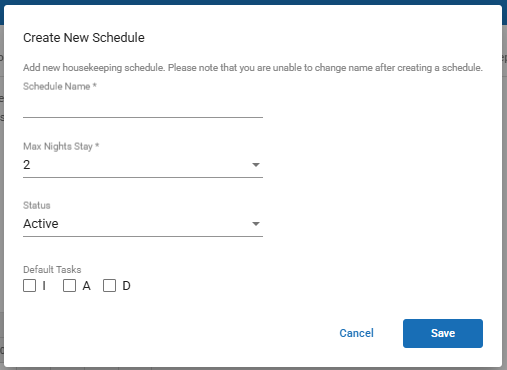
- It is possible to create multiple schedules, any that are not associated with rooms will be ignored.
- It is not possible to delete schedules or change their name or maximum stay length once created.
- The maximum value for Max Nights Stay is
150.
Cleaning Events
In addition to the default cleaning events, under Cleaning Event Names, it is also possible to define a further seven custom cleaning events, these will be common to all of your cleaning schedules.
Using the example below:
- H1 - Minor
- H2 - Major
- H3 - Linen change
- H4 - Towel Change
- H5 - Linen and Towel Change
- H6 - Maintenance
- H7 - Out Clean
To edit the name of a cleaning event - Custom Name, navigate to the Housekeeping Task Names tab, select the language, enter the custom name, and click Save at the bottom of the screen.

Adding Events to Schedules
It is possible to add events to a cleaning schedule in two ways
First, click the edit  icon at the bottom right of the screen to enable editing mode.
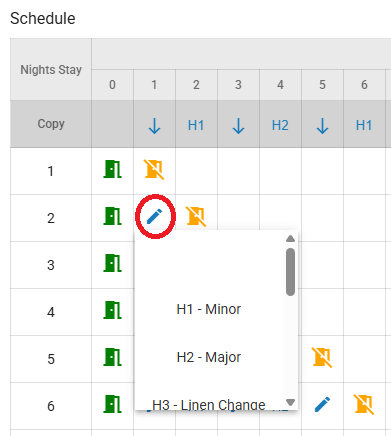
By day of event (Individually) – for example by adding only the first night of a two day booking. Click the edit icon for the slot where you want to add a cleaning task, select the cleaning type, and then click the save
 icon on the right side of the screen to save.
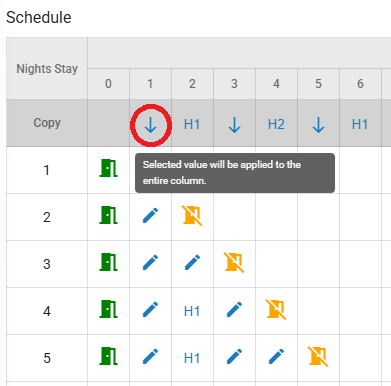
By day of event (vertically) – for example by adding events to occur on the first day of every booking. Click the ↓ button in the column you want to edit, select the cleaning type, and then click the save button on the right side of the screen to save.
Associate Cleaning Schedules with Rooms
Once cleaning schedules have been created they need to be associated with room types.
Choose the Schedule ⟷ Room Types tab.
- Click add icon on the right side of the screen.
- Select a schedule to associate with room types from the left hand box.
- Move all room types to be associated with this schedule to the right hand box using the arrows.
- If this schedule is to be the default schedule for this room type tick the Default check box.
- Click Save.

- If no default schedule is set for a room type then the first alphabetically will be used as default.
- If multiple default schedules are set, the first of the defaults alphabetically will be used.
- Associating schedules with rooms will not change the cleaning schedule that has been set for pre-existing bookings. To change the cleaning for existing bookings the schedule will need to be set on each booking.
Bulk Regenerate Tasks
When changes are made to a schedule configured in Manage Housekeeping Schedule, you can regenerate tasks for bookings that start within a selected date range.
From the Bulk Regenerate Tasks tab, select the From and Number of Days, then click Update.
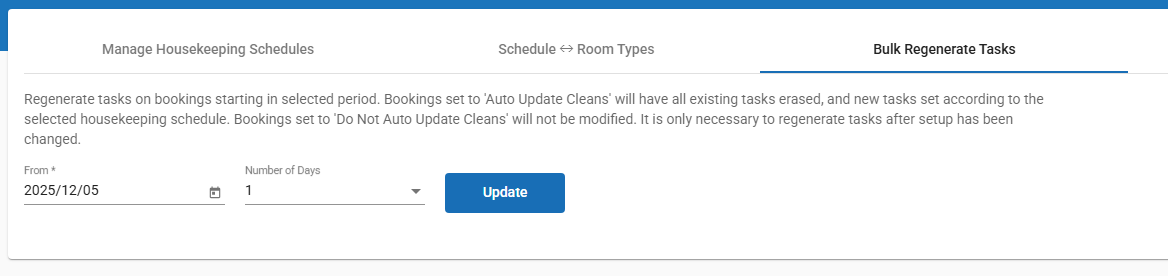
If a booking’s Housekeeping Update Setting is set to "Auto Update Cleans", the modified tasks will be regenerated through this bulk update.
Cleans will not be generated for bookings where the Housekeeping Update policy is set to "Don’t Auto Update Cleans".
Housekeeping Task Duration
By linking each housekeeping task’s estimated duration with the relevant room types, you can use the Housekeeping Report to understand in advance how much time the day’s housekeeping will require.
From the Housekeeping Task Durations tab, click the icon at the bottom right of the screen to create a new cleaning task group.
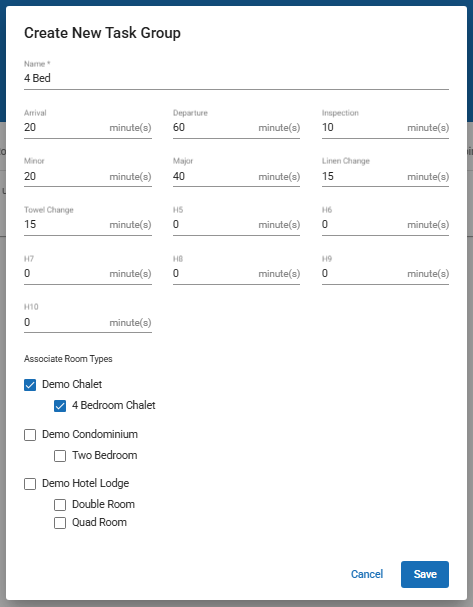
Enter a name of your choice, specify the estimated duration for each cleaning task, select the room types to associate with it, and click Save.