Price Component Profiles
Before configuring Price Component Profiles, please confirm your tax requirements with your accountant or tax advisor to ensure your setup complies with local regulations. RoomBoss calculations may not cover all local compliance requirements.
Price Component Profiles allow you to break down booking values into elindividual pricing components, such as:
- Sales tax
- Service charges
- Local accommodation (bed) taxes
How It Works
RoomBoss treats all booking values as tax-inclusive.
Once a Price Component Profile has been created and assigned to your products, RoomBoss automatically applies the configured rules whenever a booking is created.
This feature provides several benefits:
- Consistent handling of OTA bookings, which typically provide tax-inclusive prices
- Flexible breakdown of tax and non-tax components using personalized rules
- Automatic and detailed calculation of values, split into individual price components
- Optional commission rules, allowing commissions to be calculated on specific components only (for example, excluding accommodation tax from commission calculations)
Supported Profile Types
RoomBoss supports the following Price Component Profile types:
- Sales Tax (%)
- Sales Tax + Service Charge (%)
- Sales Tax + Bed Tax (location-specific)
- Sales Tax + Option-based amount
- Other Tax (custom per person/night)
Bed Tax Profiles
The following accommodation (bed) tax profiles are currently available:
Each location has its own tax rules and configuration requirements.
For detailed setup instructions, refer to the corresponding location-specific documentation.
Setting Up a Profile
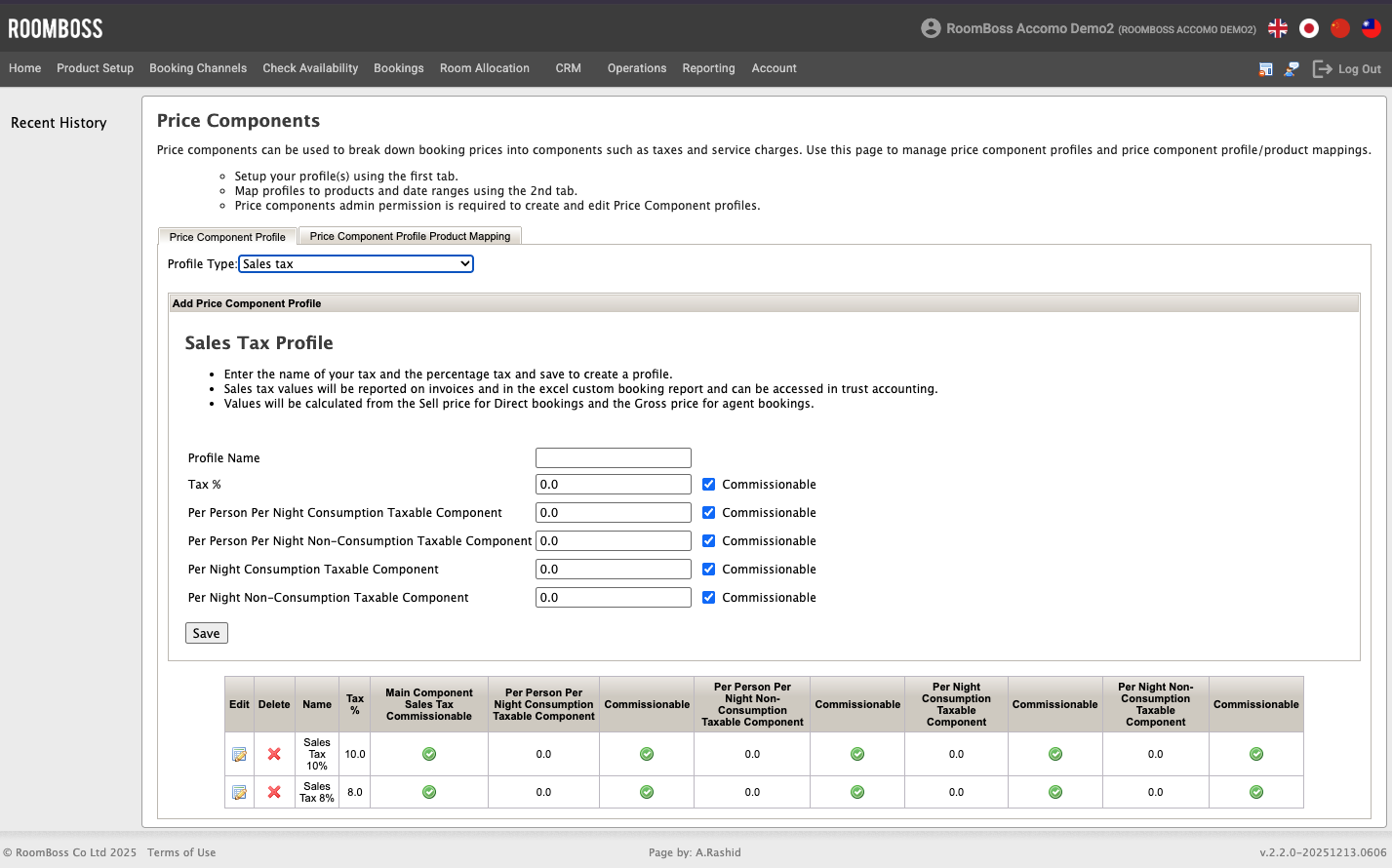
Navigate to Product Setup → Price Component Profile
- Select the Profile Type
- Enter a Profile Name
- Configure your required values, such as Tax %, Taxable Component (percentage or fixed amount depending on the selected profile type).
- Set Commissionable components by checking the box if applicable)
- Click Save
Some profile types include optional exclusions such as:
- Per person per night exclusions
- Per night exclusions
- Percentage-based exclusions
These are typically used for breakfast, onsen tax, service charges or other non-taxable components.
If no exclusions are required, leave these fields set to 0.
Mapping Profiles to Products
After creating a profile:
- Go to the Price Component Profile Product Mapping tab
- Select a Date range
- Select one or more Products
- Choose your profile in Select Price Component Profile
- Click Save
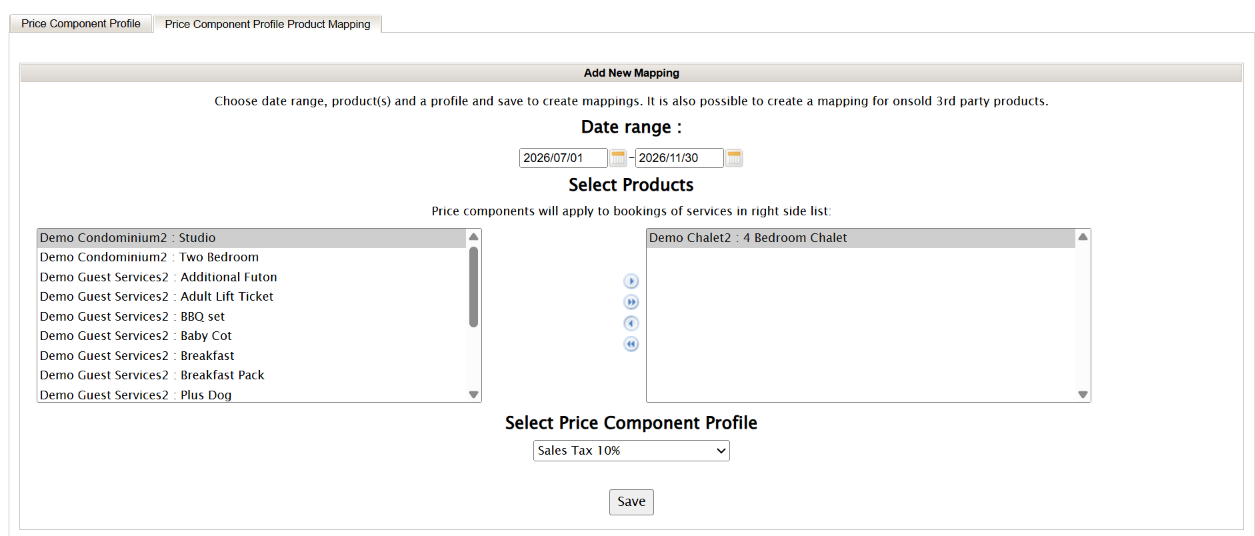
The selected profile will apply to all bookings where the product date falls within the selected range.
You can also assign a profile to All 3rd party (onsold) products
Where Components Appear
Once a Price Component Profile is applied, the breakdown will be visible in the following areas:
-
Invoices and Receipts
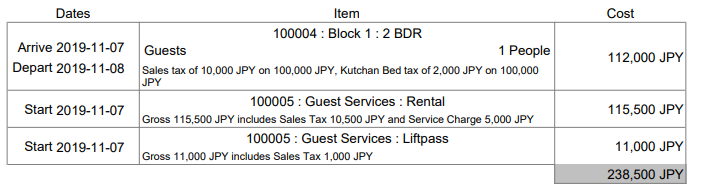
Each booking item will display a breakdown of the total amount (e.g. base amount, tax, bed tax, service charge). -
Custom Booking Reports Excel
Components are available as separate fields, allowing you to analyse tax and revenue breakdowns in detail. -
Trust Accounting
Component values are available for financial reporting and owner statements. -
Bed Tax Reporting
- Available for Kutchan bed tax only: A dedicated Kutchan Tax Report is available, including export for tax filing.
Dedicated accommodation tax reports are currently available only for the Kutchan Accommodation Tax profile. For all other accommodation tax profiles (such as Niseko Town, Furano, Hakuba, and Rusutsu), use the Custom Booking Report (Excel) to review and reconcile accommodation tax values.
Example:
Important Notes
- Profiles apply based on product date, not booking date
- All calculations assume tax-inclusive pricing
- Some tax types (e.g. Niseko Town) use banded rules, which may require manual adjustment in edge cases.
If a booking falls outside defined tax rules, a warning may appear and manual adjustment may be required.
Always verify with your accountant or tax advisor if the configuration complies with local regulations.