Managing Rates & Restrictions At The Day Level
Navigate to Product Setup → Rates
Entering Rates
Once a rate has been set, it cannot be deleted or set to zero.
This limitation exists because OTAs do not allow rates to be removed or set to zero once published. To ensure consistent behavior and avoid rate synchronization issues between RoomBoss and connected OTAs, RoomBoss enforces the same rule.
If a rate should no longer be sold, users should close the rate for the relevant dates instead.
Rates can be opened or closed per day at any time as shown at the bottom of this page.
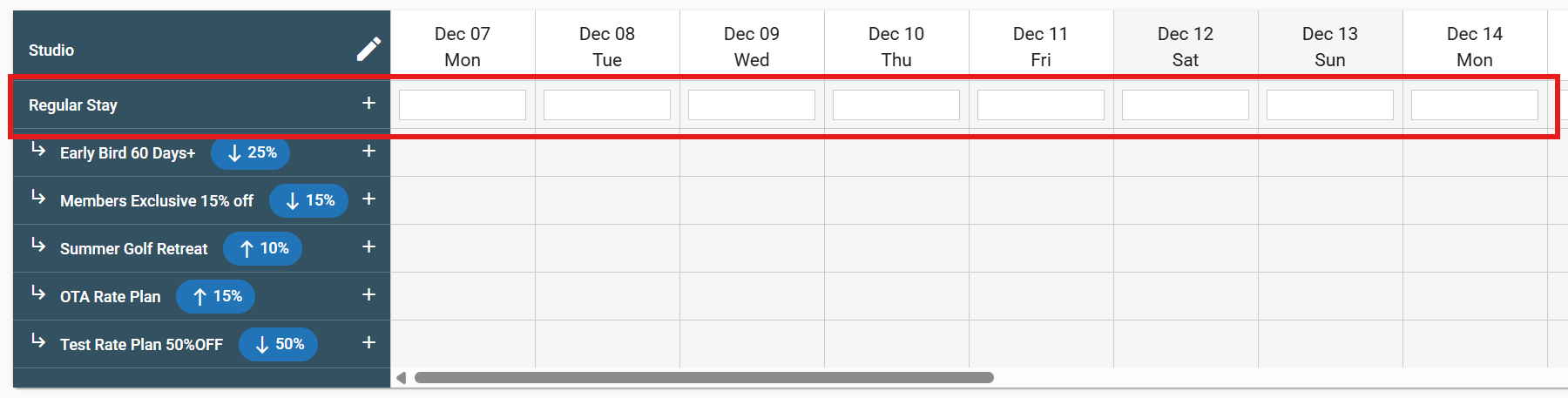
Rates can be entered day by day directly into the page:
A quicker alternative is adding rates in bulk, to do this click the edit icon  next to the desired room type:
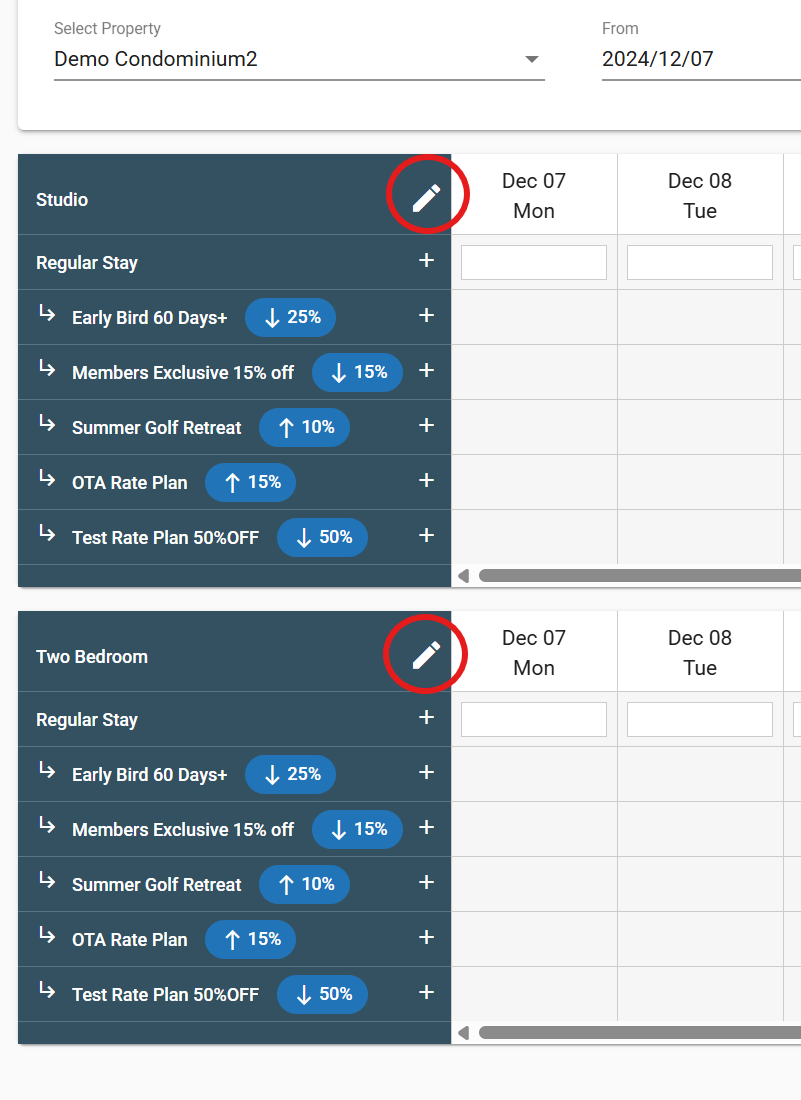
Example: Using Bulk Update to enter rates
In the example shown, 2 room types exist:
- Studio
- Two Bedroom
Studio - Regular Rate is set to 30,000¥ for dates 2024/12/14 to 2024/12/31.
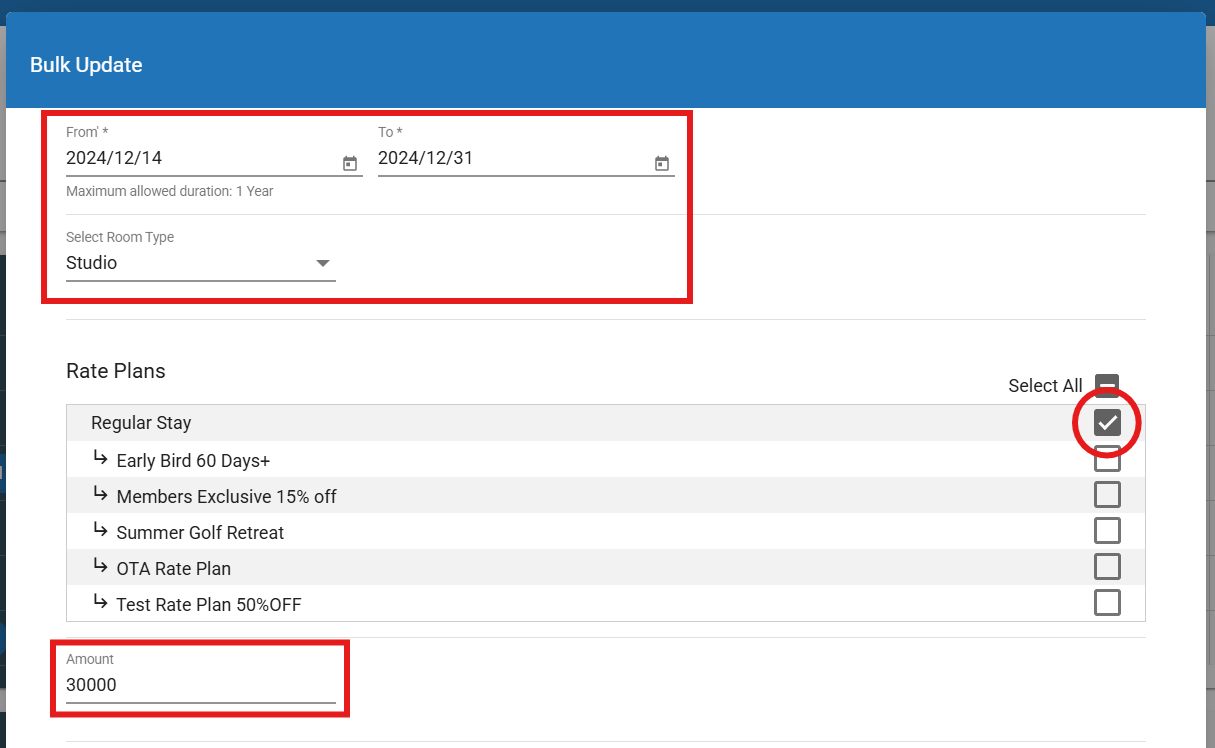
Modify the rate plan for other rooms as well using the same dates (2024/12/14 to 2024/12/31):
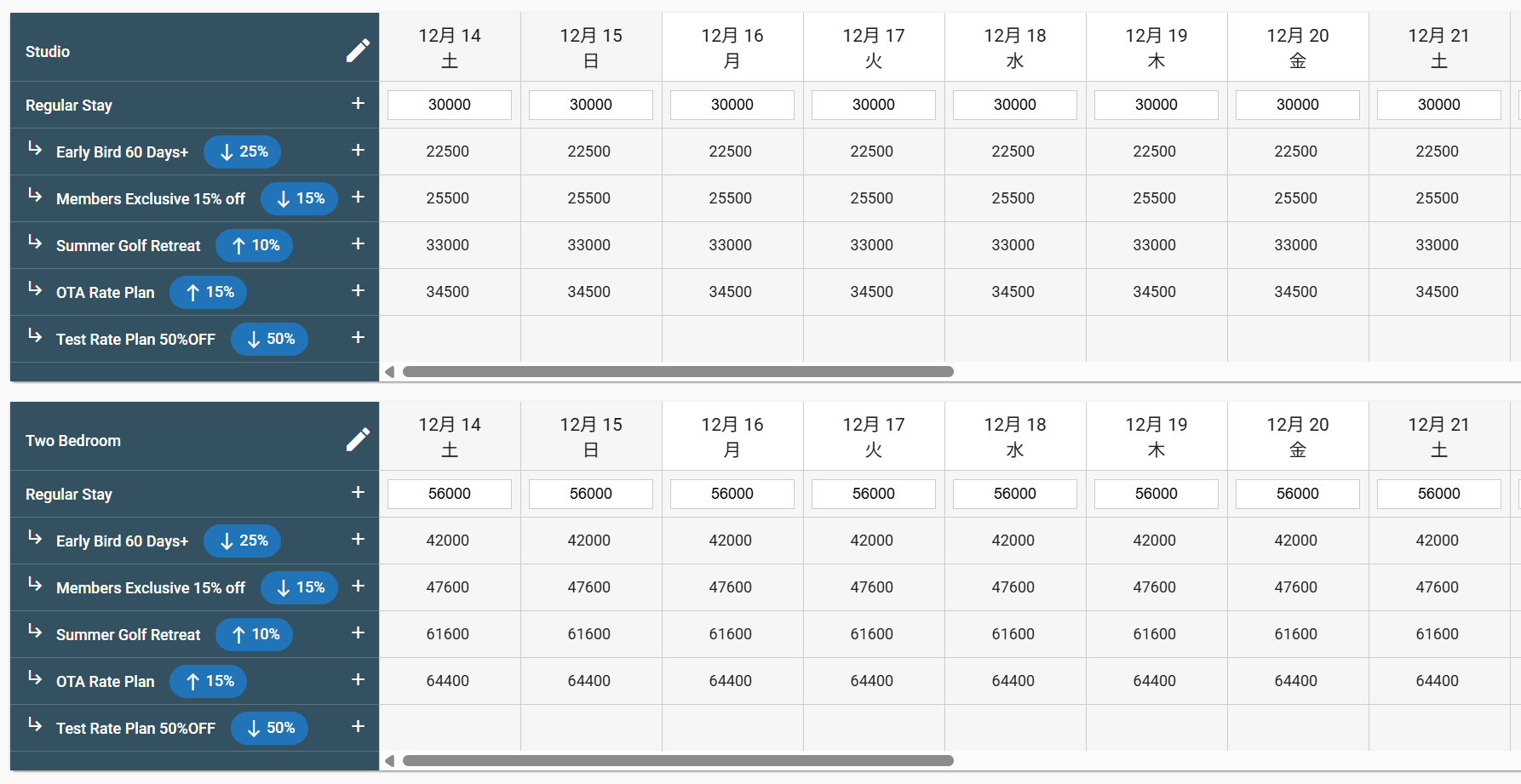
Two Bedroom - Regular Rate set to 56,000¥.
Once the main rate Regular Rate is set, all derived rates will be automatically calculated.
Restrictions
It is also possible to set restrictions on the Bulk Update page, restrictions set here will override those set on the rate plan.
The following restrictions can be set:
- Open/Closed rate plans
- Open/Closed for Arrival
- Open/Closed for Departure
- Min LOS (Minimum Length of Stay)
- Max LOS (Maximum Length of Stay)
- Min days to check in (Minimum days to check in)
Below are some examples of how to use the Bulk Update page to set restriction.
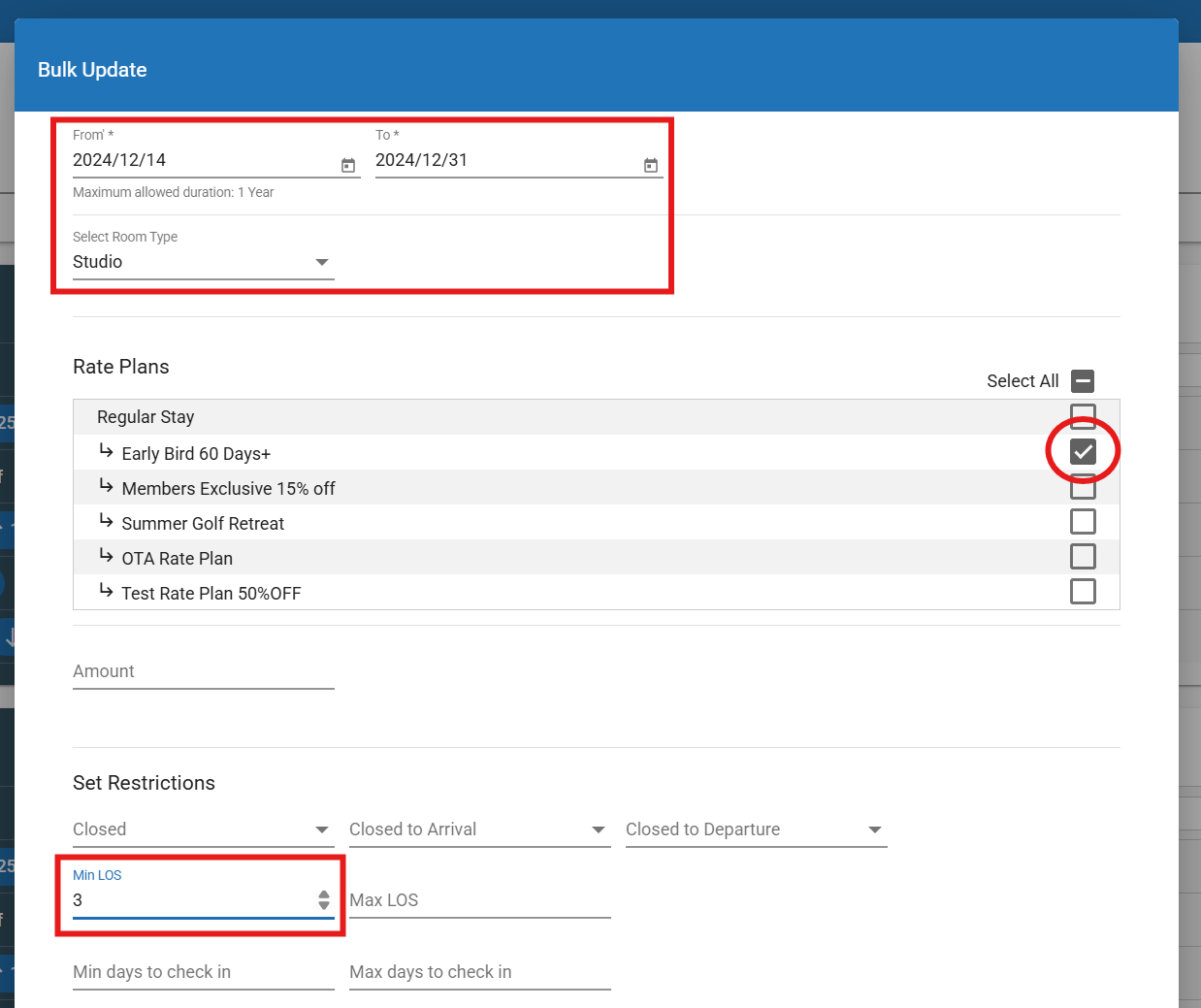
Example 1: Setting a Min LOS (Minimum Length of Stay)
- Click on the edit icon next to the desired room type.
- Select Room Type: Studio
- Select Rate: Early Bird 60 Days+
- Set Min LOS (Minimum Length of Stay): 3
- Set date range: 2024/12/14 to 2024/12/31
- Click Update and Close
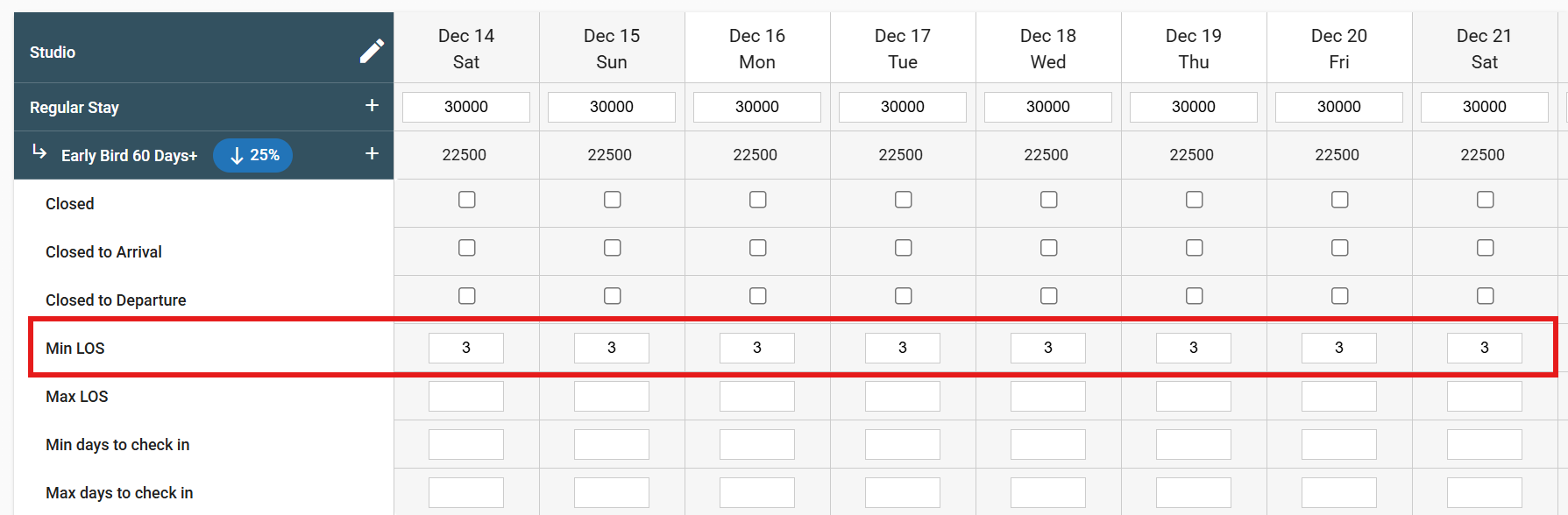
The room type Studio will show Min LOS set to 3.
Example 2: Closing a rate plan
- Click on the edit icon next to the desired room type.
- Select Room Type: Studio
- Select Rate: Early Bird 60 Days+
- Set Closed: Yes
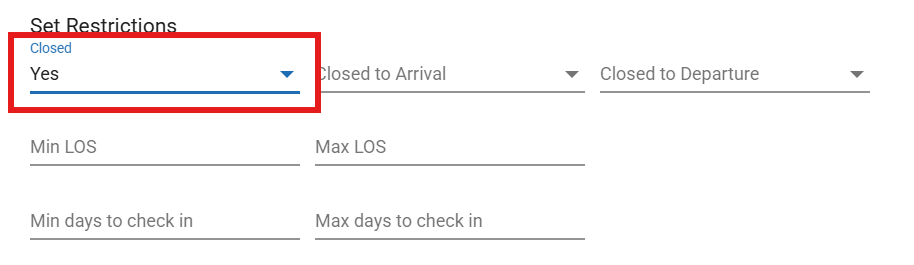
- Set date range: 2024/12/01 to 2024/12/05
- Click Update and Close
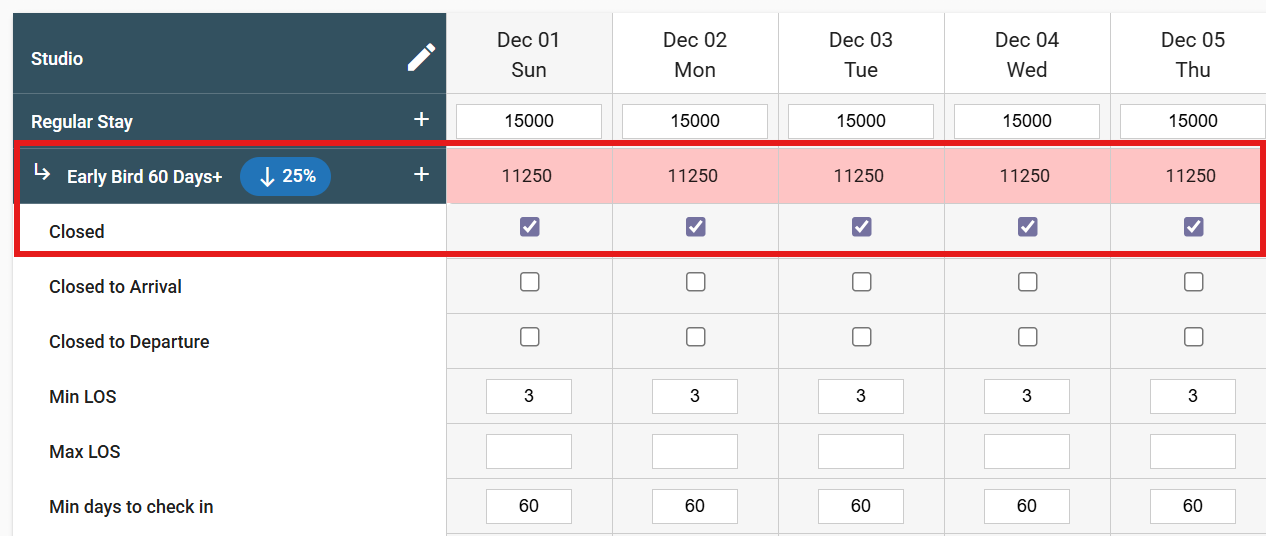
Studio - Early Bird 60 Days+ will show Closed and will be highlighted.
Important Notes
Decimal Value Restrictions
The number of decimal values allowed when entering rates depends on the currency configured for the Vendor.
For JPY, decimal values are not supported.
For example:
¥65,000 → Valid
¥65,000.99 → Invalid
For currencies that support decimals (such as USD), a maximum of two decimal places is allowed.
For example:
$299.99 → Valid
$300.998 → Invalid
If a rate contains more decimal places than the selected currency allows, RoomBoss will display an error and the rate cannot be saved.